
|
Print address label, cards and more.
Get data from MS Excel, MS Access and print on your labels! |
|




|
||
Take Video Tutorials for our products to find out most of your answers. It is a step by step guide to show you how you can do most of work. It's easy, it's fun, just click and watch!
Some Questions and Answers - May help you!

- What payment options are available?
- What currencies do you accept?
- How can I place an order?
- What will happen after I place my order?
- When will I receive my product?
- How do I get any special discounts?
- How can I place a purchase order?
- How will the charge appear on my credit card /debit card statement?
- Can I get the product on a CD-ROM?
- When will I receive my CD-ROM on Demand?
- What will I receive if the product is delivered by e-mail?
- How secure is my online order?
- Will my personal data be shared with any third parties?
- Can I save my card as PDF file or Image file?
- I see a slight misalignment while printing. What are the other ways to print?
- How do I add/remove back side of my card?
- How do I print back side of my card?
- Why do the shadows not show up even if I choose 'show shadow' on the properties window?
- Can I create a vertically aligned card or a custome size business card?
- I choose a background color, but doesn’t show up. Why?
- I saved my design as a template, but does not show up in the "New Card Template" window. What's wrong?
- I closed the property window. How do I get it back for changing the properties(color, size, tilt angle etc.) of an element?
- How can I send my design to someone by email who does not have this software?
- How do I use new font with the application?
- I cannot move or resize some elements in my design. Why?
- I have some elements that are outside the design area. Will they show up on my printed card?
- What graphic file formats are supported by Belltech Business Designer Pro?
- How do I use an image file that is in an unsupported format?
- What type of paper do I buy to print business cards?
- 'Save as Image' does not save the background image. How do I do it?
- I would like to save my card as a high resolution image and then get it printed from a printshop. How can I do this?
- After entering text or in print i see dots appearing, not the whole text. How can I fix this?
- How can i add ©, ®, TM, bulletted item list or other symbols?
- How do I change the size of a photo or text or any element?
- How do I use my letterhead with Microsoft Word document?
- How do I print a list of name badges on the same page?
- I closed the property window. How do I get it back for changing the properties(color, size, tilt angle etc.) of an element?
- How can I send my design to a printshop for professional printing?
- How do I use new font with the application?
- How do I use an image file that is in an unsupported format?
- How do I print only one label at a specified location on my sheet?
- How do I connect to my data files?
- What types of data files are supported?
- I want to print address labels from my Excel files. Do I need to know SQL?
- How do I convert my date to format like January 5, 2005 or 01/05/2005 etc.?
- How do I join 2 fields into one. Like FirstName, LastName into one single line, or Addrs1, addrs2 into one field?
- How do I add automatic label counter, like 1 of 100, 2 of 100 or 1/100 ?
- How can I pull data from 2 or more sheets from a single Excel file?
- How do I connect to my data files, Access or Excel sheet?
Please refer to CaptureXT help pages.
Gm Nao 33.004 Download [top] -
One crucial aspect of the GM Nao project was its software. The team had been working on version 33.004, which promised to revolutionize the robot's capabilities. The software update would enable the GM Nao to learn from its environment, adapt to new situations, and interact more seamlessly with humans.
"Alright, everyone," she began. "Today's the day we take a major leap forward with GM Nao. We're going to download and install version 33.004. This update will change the game."
As the download progressed, Dr. Kim briefed her team on the new features of version 33.004. "This update includes significant improvements to the robot's AI, as well as enhanced sensorimotor capabilities. The GM Nao will be able to recognize and respond to voice commands, navigate complex spaces, and even exhibit basic emotions."
The team listened intently, their faces filled with anticipation. They had worked tirelessly to bring the GM Nao to life, and this software update was the key to unlocking its full potential.
The team erupted into a mixture of cheers and applause. They had done it. The GM Nao, powered by version 33.004, was ready to change the world.
As the lead developer, Dr. Kim was responsible for overseeing the download and installation of the software. She stood in front of her team, a mix of excitement and nervousness building up inside her.
Dr. Kim smiled, a sense of pride and accomplishment washing over her. "It's alive," she whispered, as if to herself.
One crucial aspect of the GM Nao project was its software. The team had been working on version 33.004, which promised to revolutionize the robot's capabilities. The software update would enable the GM Nao to learn from its environment, adapt to new situations, and interact more seamlessly with humans.
"Alright, everyone," she began. "Today's the day we take a major leap forward with GM Nao. We're going to download and install version 33.004. This update will change the game."
As the download progressed, Dr. Kim briefed her team on the new features of version 33.004. "This update includes significant improvements to the robot's AI, as well as enhanced sensorimotor capabilities. The GM Nao will be able to recognize and respond to voice commands, navigate complex spaces, and even exhibit basic emotions."
The team listened intently, their faces filled with anticipation. They had worked tirelessly to bring the GM Nao to life, and this software update was the key to unlocking its full potential.
The team erupted into a mixture of cheers and applause. They had done it. The GM Nao, powered by version 33.004, was ready to change the world.
As the lead developer, Dr. Kim was responsible for overseeing the download and installation of the software. She stood in front of her team, a mix of excitement and nervousness building up inside her.
Dr. Kim smiled, a sense of pride and accomplishment washing over her. "It's alive," she whispered, as if to herself.
2.Open MS Word(*.doc)
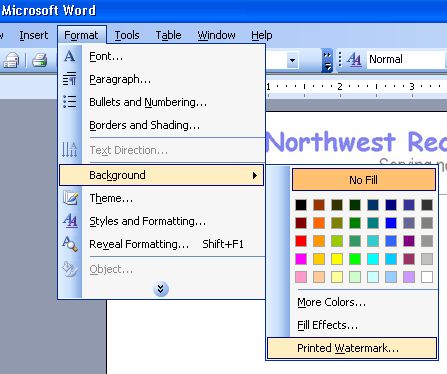
3.In Word Doc, go to menu: Format->Background->Printed Watermark
4.Select a the letterhead image that you saved in step 1.
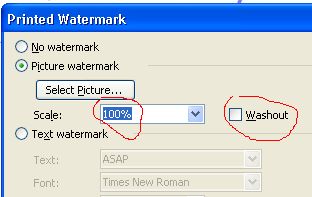
5.Choose scale 100% and uncheck Washout option. Click OK. You are done.

Q. How do I print a list of name badges on the same page?
Senario-1: You want to print multiple badges with different names.
Solution:
1. You must first have the list of names in a text file or Excel sheet or in a database file.
2. Then you need to connect your datafile as shown here - data connection
If you don't know how to create the txt/csv/xls file, check out these samples:
a. data in plain text file - sample-name-address.txt
b. data in Excel sheet - sample-name-address.xls
c data in csv file - sample-name-address.csv
Senario-2: You want to print multiple badges with same names.
Solution:
Just design one badge and then go to File->print menu and select how many you want to print.
Q. I closed the property window. How do I get it back for changing the properties(color, size, tilt angle etc.) of an element?
Q. How can I send my design to a printshop for professional printing?
Q. How do I use new font with the application?
Q. How do I use an image file that is in an unsupported format?
Q. How do I connect to my data files?
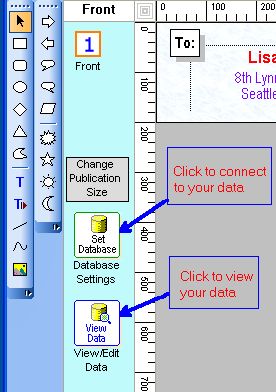
You can also click on menu: File-->Database Settings to set up your data files.
Then go to menu: Insert-->Text From Database to insert a text.
Q. I want to print address labels from my Excel files. Do I need to know SQL?
For most cases SQL knowledge is not required.
Steps to use excel data source:
1. Click on menu: File->Database settings. A Datasource Window appears.
2. Select excel option and browse to your excel file.
3. Now you will see a dropdown with all the excel sheets in the excel file.(an excel file may have one or many sheets)
4. Select the execl sheet you want from the dropdown.
5. Click ok.
At this point you have connected to your excel sheet with your work.
Now go to menu: insert->text from database, and insert an element to your design work. Then go to righthand side's properties area and see a drop down with all the columns in your selected excel sheet. Choose one column and you are done.
Then take a printpreview from file menu.
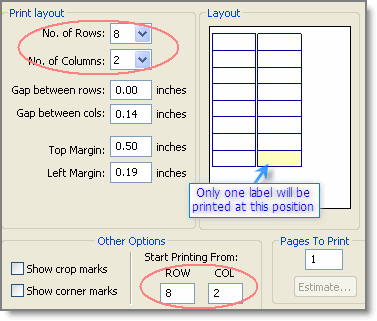
Q. How do I print only one label at a specified location on my sheet?
Then you choose this option in print window:
No. of rows=8
No. of cols=2
Start printing from row=8, col=2.
See illustrated image. The postion marked yellow will only be printed.
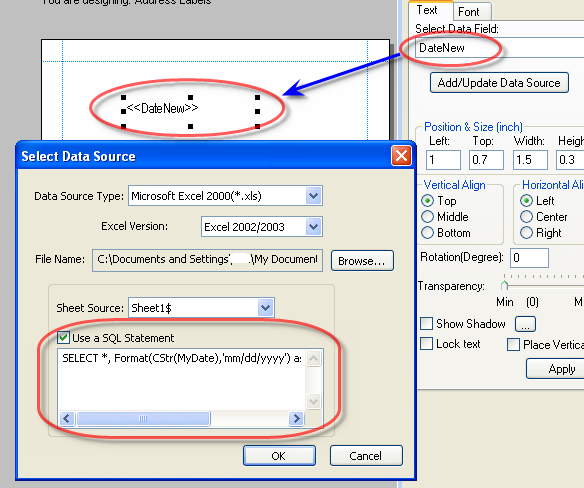
Q. How do I convert my date to format like January 5, 2005 or 01/05/2005 etc.?
SELECT * Format(CStr(MyDate),'mmmm dd, yyyy') as DateNew FROM [Sheet1$]
[This will convert the date to this format: January 5, 2005]
SELECT Format(CStr(MyDate),'mm/dd/yyyy') as DateNew FROM [Sheet1$]
[This will convert the date to this format: 01/05/2005]
You can use many other format strings like Format(CStr(MyDate),'m/d/yy'), Format(CStr(MyDate),'m-d-yy'),Format(CStr(MyDate),'mm-dd-yyyy') etc. Put the SQL statement in the text box as show below:
Q. How do I join 2 fields into one. Like FirstName, LastName into one single line, or Addrs1, addrs2 into one field? gm nao 33.004 download
Step 1:
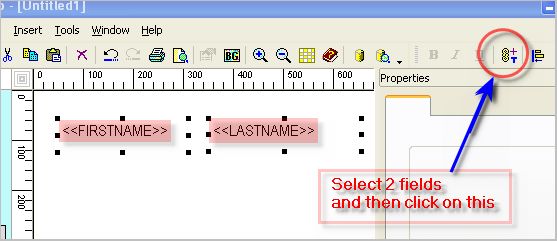
Select the 2 fileds(example FirstName, LastName) you want to join by holding "Ctrl" Key and clicking on them.
Step 2:
Then click on the tool button as shown, or select from menu: Tools->Merge selected DB-Texts Select
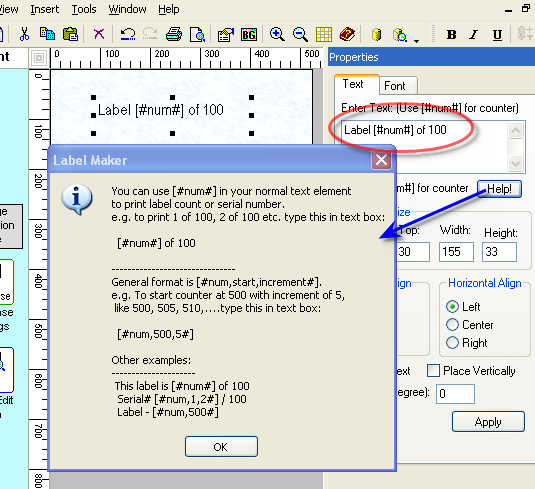
Q. How do I add automatic label counter, like 1 of 100, 2 of 100 or 1/100 ?
SELECT [SheetName$].Name, [SheetAddress$].Address FROM [SheetName$] , [SheetAddress$] where [SheetName$].ID=[SheetAddress$].ID
Q. How do I connect to my data files, Access or Excel sheet?
Click on menu: File-->Database Settings to set up your data files.
Steps 2:
Then go to menu: Insert-->Text From Database to insert a text as shown.
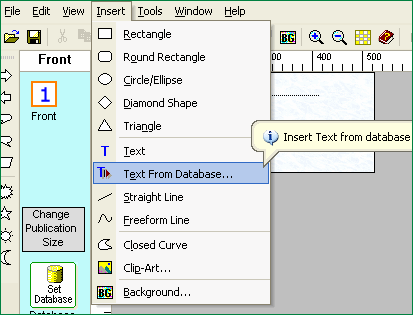 One crucial aspect of the GM Nao project was its software
Steps 3:
Then click on the text. You will see "<<TextFromDB>>" .
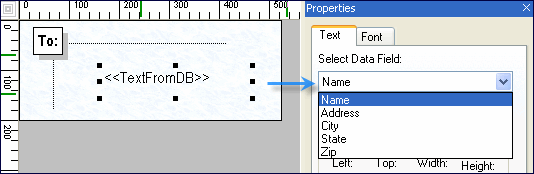
After that you will see a dropdown in the properties area. In the dropdown you will see all the columns
that your Access Table or Excel Sheet has. Select the column(e.g. Name) to show in this text element.
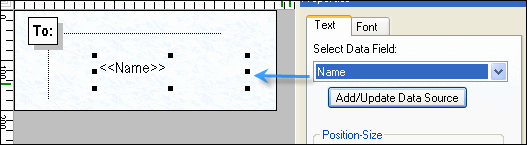
Steps 4:
Repeat step 2 and 3 to select other columns (e.g, Address, City etc.)
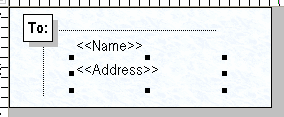
Steps 5:
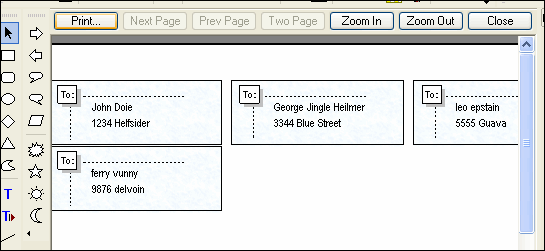
Go to menu File->Print Preview to see a preview as shown.
If things look fine, print your labels.
 "Alright, everyone," she began
|
|
|
home %!s(int=2026) © %!d(string=Infinite Insight) | buy | products | services | support | privacy policy | |
|
Copyright © 2001-2009 Belltech Systems, Inc. All rights reserved
|